Check every image in an email before it slows the email down
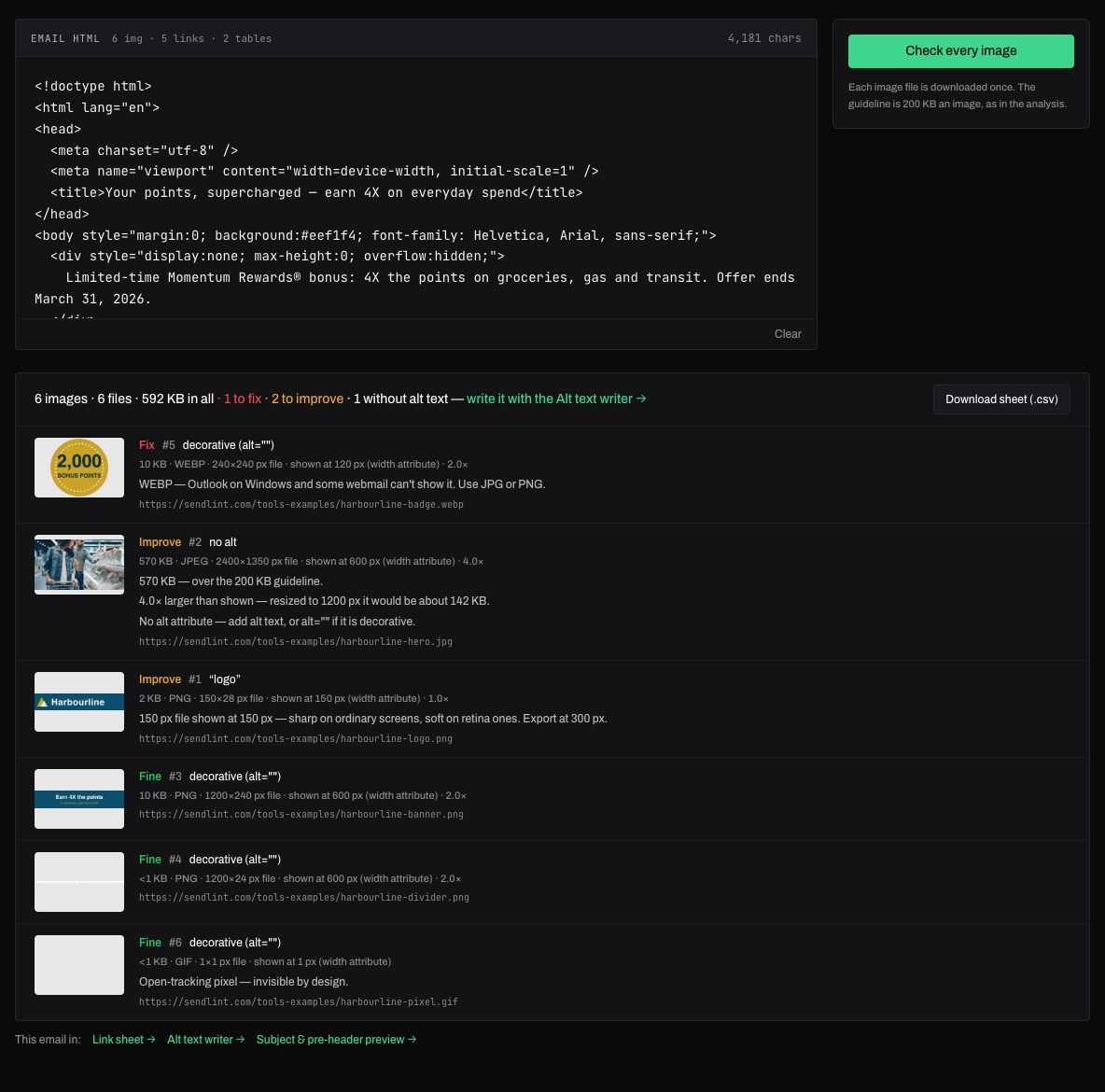
An image can look fine in the build and still be four times the pixels it needs, soft on a retina screen, or in a format Outlook can't show. Image check downloads each image once and says what it is and what to fix.
What you get
- File size against a 200 KB guideline, and the total weight of the email
- Pixel size against the size it is shown at — blurry, not retina-ready, or far larger than needed
- Formats some inboxes can't show (WebP, SVG) and animated GIFs
- Missing alt text, with the same image used several times grouped as one
How it works
- Paste the email's HTML or drop the file.
- Press Check every image — each file is downloaded once.
- Fix what's flagged, worst first, or download the sheet.
Frequently asked questions
- What counts as too heavy?
- Over 200 KB for one image is flagged to improve, over 1 MB to fix — the same guideline SendLint's full analysis uses.
- Why is a tracking pixel marked fine?
- A 1×1 open-tracking pixel is invisible by design; it needs no size or retina check.
More tools
The tools are part of SendLint, which checks every email in a campaign against its copy deck and creative — every version, both languages, every round. See SendLint.