Turn any copy deck into one clean, checkable deck
Copy arrives in a Word file, links in a spreadsheet, the French as its own document. Prepare a deck reads them all, puts the links under the versions and languages they belong to, shows you the result side by side, and writes it out as one deck.
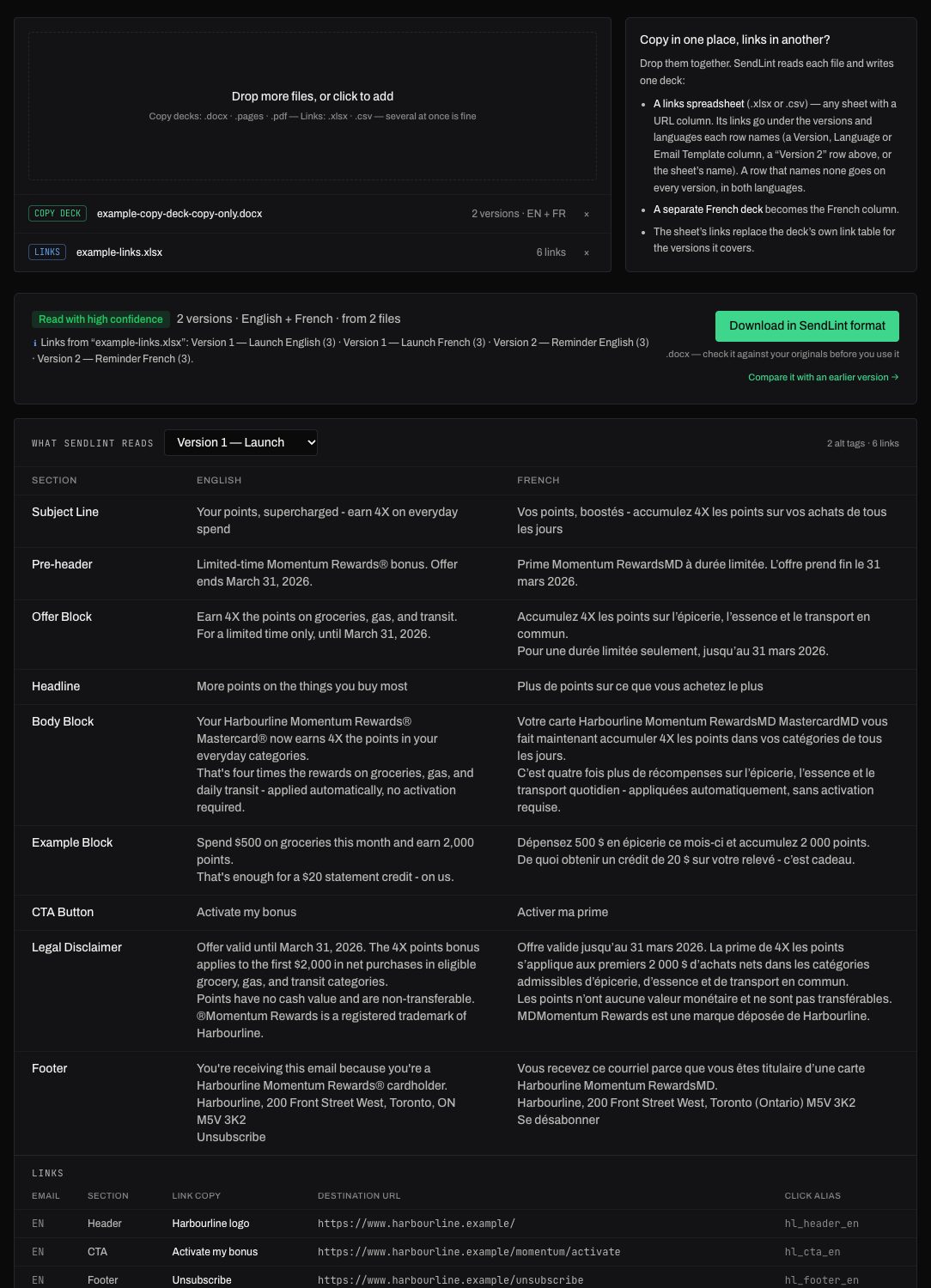
What you get
- Every version's copy, English beside French, exactly as it was read
- Links from an .xlsx or .csv sheet placed under the right version and language
- A separate French deck merged in as the French column
- One .docx with the copy, alt text and a full link matrix — section, link copy, URL and click alias
How it works
- Drop the copy deck, plus the links spreadsheet or a separate French deck if the campaign has them.
- Check what was read: every version and language, and a note on what came from which file.
- Download the combined deck and use it as the campaign's source of truth.
Frequently asked questions
- Which files can I drop?
- Copy decks as .docx, .pages or .pdf — including designed PDFs exported from a review tool — and link sheets as .xlsx or .csv. Several at once is fine.
- How does it know which link goes with which version?
- From the sheet itself: a Version, Language or Email Template column, a banner row such as "Version 2" above the rows, or the sheet's name. A row that names no version goes on every version; a row that names no language goes on both.
- Does the downloaded deck change the copy?
- No. It is the copy that was read, in a consistent layout. Check it against your originals before you use it.
More tools
The tools are part of SendLint, which checks every email in a campaign against its copy deck and creative — every version, both languages, every round. See SendLint.